


PTE Help Center: Account issues
Issues signing into your myPTE account
You can quickly and easily reset your password online.
Simply go the myPTE 'Sign in' screen and select ‘Forgotten your username or password?'. Then follow the instructions to receive a password reset link.
Please submit a form to our Customer Support team.
We will need to verify your identity to release your username to you, so make sure you have your security questions ready.
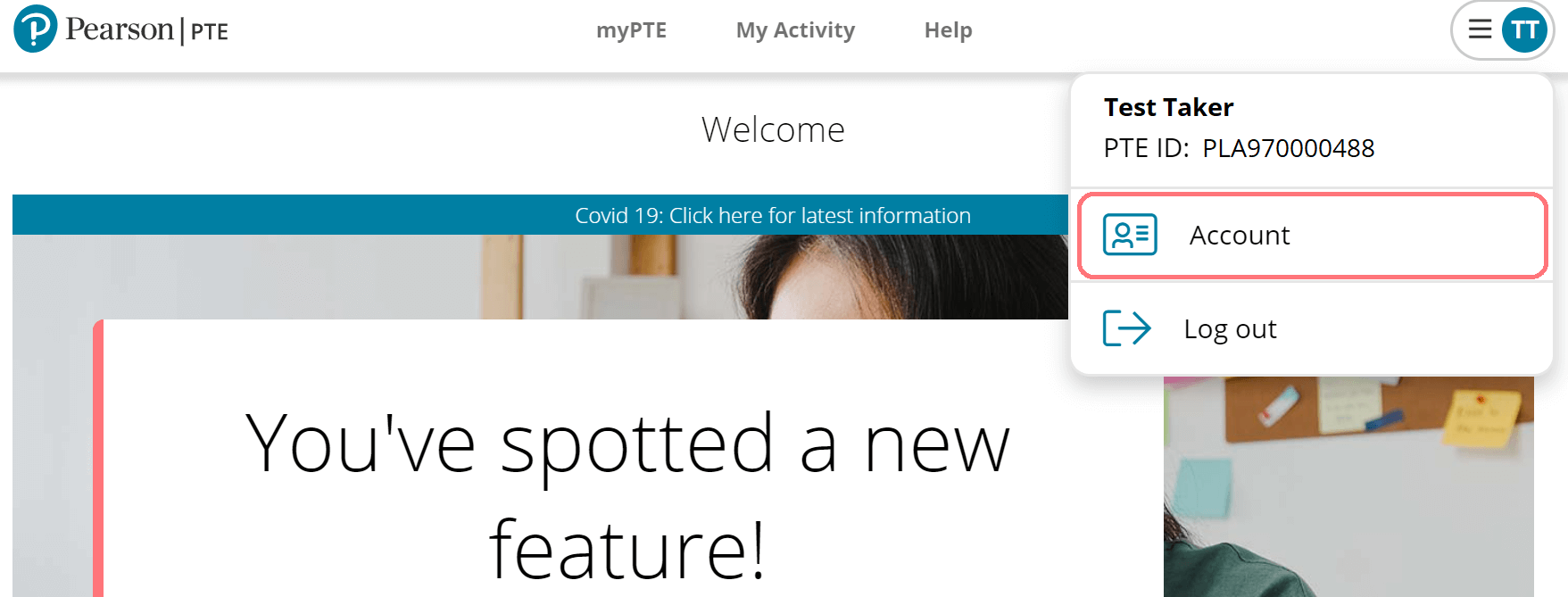
If you haven't yet booked a PTE test, you can change your personal information (except your date of birth) through your myPTE account. After logging in, go to the top right-hand menu and select 'Account' and then 'Profile'. Make the changes required and click ‘Save’ at the bottom of the screen
Important: please make sure that all of your personal information (legal name, date of birth, country of citizenship) exactly matches the information in your formal identification document.
If you have booked your first PTE test, you can change any of your personal information (except your date of birth) up to 24 hours before your test appointment. You can do this through your myPTE account.
You will not be able to make changes to your personal information in the 24 hours before your test, and up until you receive your results.
If you have already taken a PTE test, please read the information in the section below titled 'If you have previously completed a PTE test' for information on how to update your personal details.
The image below shows where you can find your account details in myPTE.
Important: please make sure that all of your personal information (legal name, date of birth, country of citizenship) exactly matches the information in your formal identification document.
If you have previously completed a PTE test and wish to change any of your personal information, you won't be able to do this until your Score Report is available on myPTE. Once you have received your Score Report, you will then be able to update your full address, country of residence, or telephone number, if your situation has changed.
If you wish to change any other personal details, you will need to contact our Customer Support team by completing our customer support form. In the first dropdown field, please select 'An issue with my account' and in the second field, please select 'Update or change my personal details', then complete the rest of the form by specifying the personal information you would like to change.
Important: please make sure that all of your personal information (legal name, date of birth, country of citizenship) exactly matches the information in your formal identification document.
If you realise that you have more than one myPTE account, you will need to contact us so that we can merge your accounts into one account. This is for security reasons. Unfortunately, you won’t be able to make a test booking until we help you to resolve this issue.
Please contact us by completing our customer support form.
Once we have merged your accounts, you will be able to book your test as normal.
The PTE booking site is widely accessible using modern browsers, including Chrome, Microsoft Edge, Safari, Firefox, and Internet Explorer.
Please note that Internet Explorer versions 10 and below are not supported. If your browser does not meet our security requirements, we encourage you to upgrade your browser to the latest version to avoid any interruption in accessing the PTE website or your myPTE account.
If you have forgotten your password or username: please follow the instructions on the sign-in pages to reset your password, or get help with your username.
If are still having issues with your account, please contact us via our online help form.
Help center topics
Contact us

Chat with us live
Open the pop-up button in the bottom corner of your screen to chat live with one of our Support team

Send us a message
Fill out our short form and one of our team will be in touch as soon as possible
Submit a form

Call us
Speak on the phone to one of our Support team directly
Find your local number